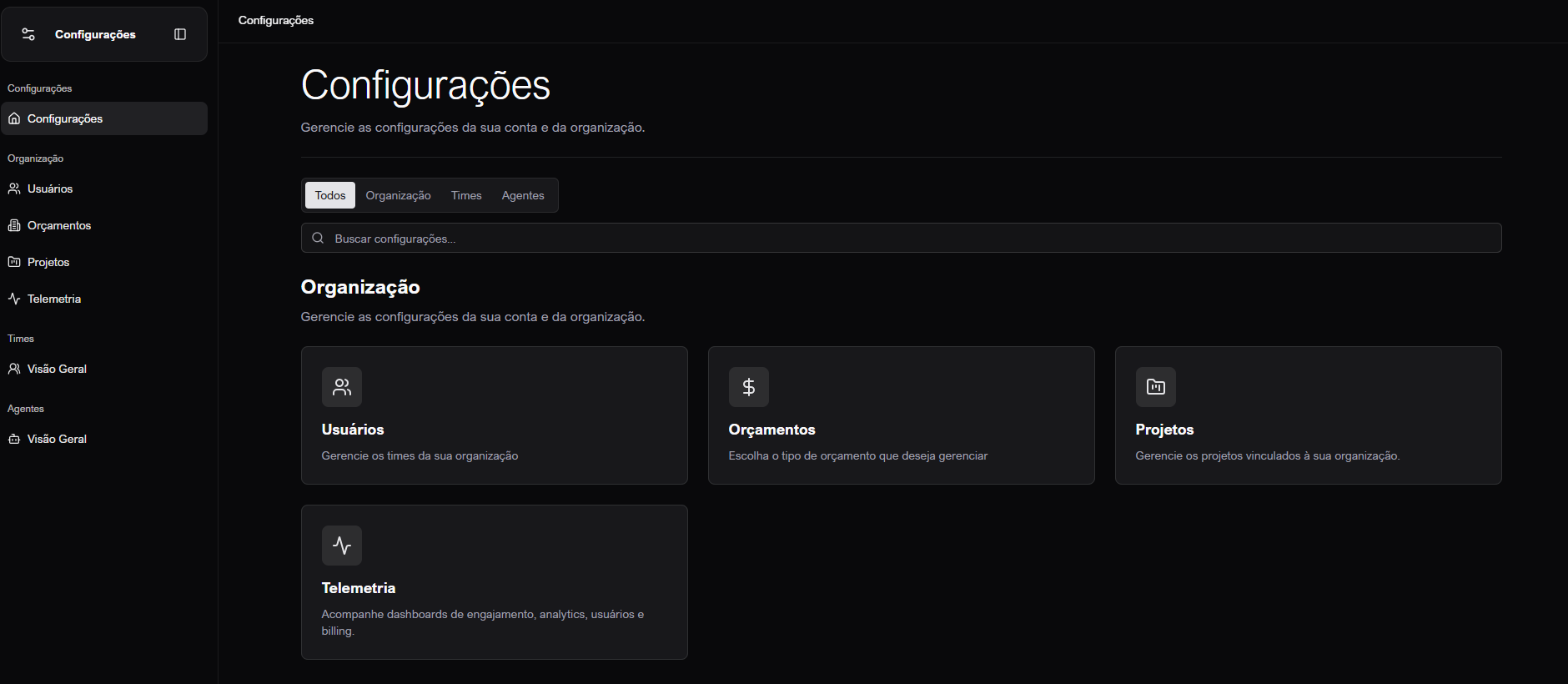
Settings - Overview
Settings is the administrative area of AI Cockpit One. It shows the cards and menus you can access in the active organization.
When to use
- Use Settings to manage users, teams, projects, agents, budgets, and telemetry.
- Use it to review organization structure before changing access or spending limits.
- Use it when a workflow depends on administrative permission.
Before you start
- Confirm the active organization in the header.
- Administrative cards appear only for users with the required access.
- Projects can be visible to more users, but creating, editing, and deleting projects require administrative access.
Access notice
Most modules in Settings are available only to Admin or Manager roles. If an option does not appear, ask your organization administrator to review your access.
Step by step: find a setting
- Open Settings from the account menu or the Command Palette.
- Use search to look for a card by name or description.
- Use section filters when available.
- Click the card for the area you want to manage.
Understand the sections
| Section | What it includes |
|---|---|
| Organization | Users, budgets, projects, and telemetry. |
| Teams | Teams and team members. |
| Agents | Agents and applications. |
Recommended workflow
- Validate the selected organization in the header.
- Adjust team structure in Teams.
- Review users and access roles in Users.
- Review Projects when the area is available for your organization.
- Validate spending limits in Budgets.
- Manage agents in Agents when the module is available for your role.
- Review usage, costs, and reports in Telemetry.
Expected result
You should reach the correct administrative area and see only the options that match your organization and role.
Tips and common issues
- If an area does not appear, confirm your permission and active organization.
- If search returns no result, clear the text and check the section filters.
- If data looks outdated, reload the page or use the refresh action in the target module.
Flow image