Chat with Agents
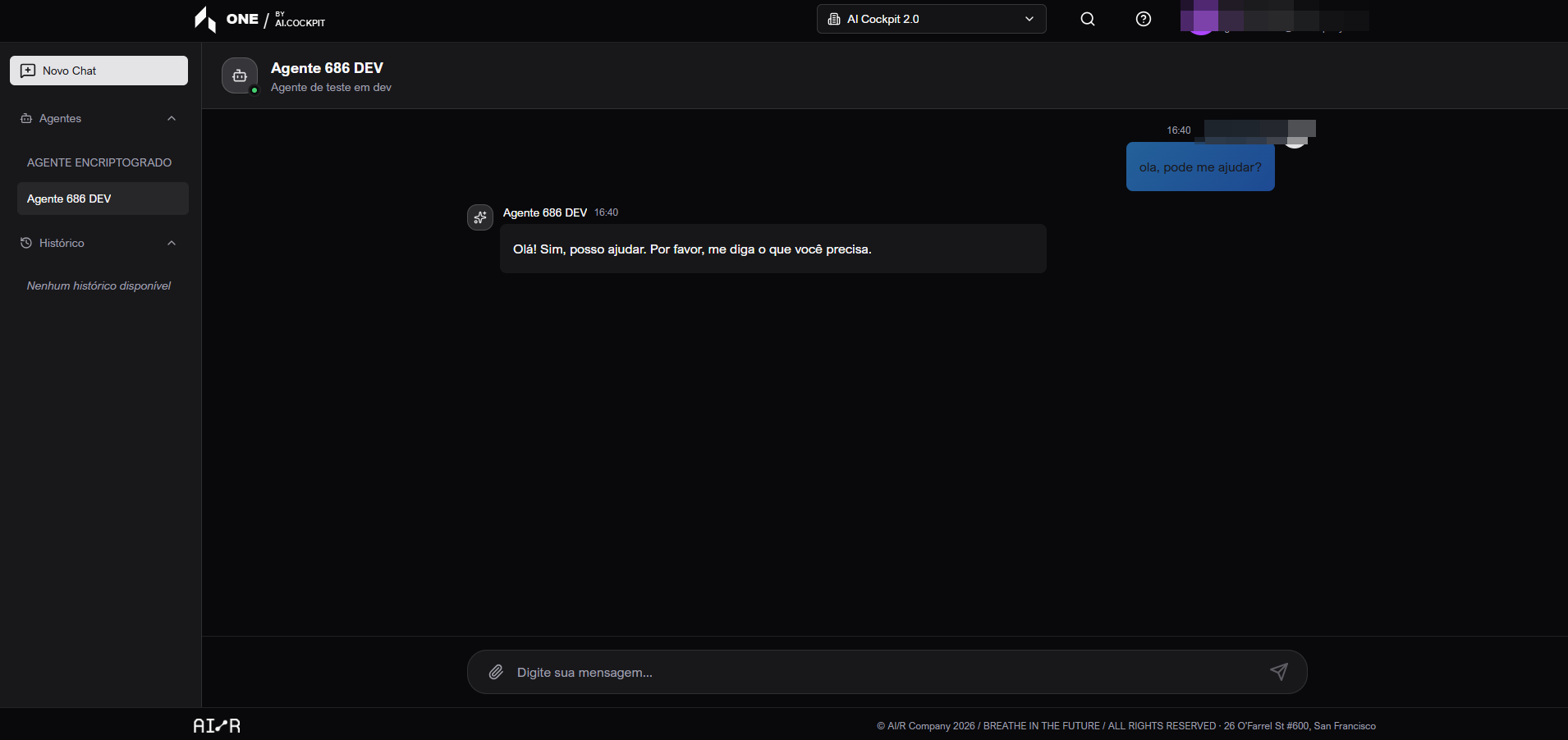
Chat lets you talk to a selected agent in AI Cockpit One. Each agent may have its own description, session history, and attachment support depending on how it is configured.
When to use
- Use Chat to ask questions or request work from an agent.
- Use it to continue a previous conversation with session history.
- Use it to send images as attachments when the agent supports them.
Before you start
- Open the correct agent from Home.
- Confirm that the agent is active.
- Check whether the agent supports attachments before relying on image input.
Step by step: start a conversation
- From Home, open the desired agent.
- Click Access or Start Chat.
- Wait for the agent to load.
- Type your message in the input field.
- Press
Enterto send. - Use
Shift + Enterto add a line break without sending. - Wait for the response to appear in the conversation.
Step by step: attach an image
- In the message field, click the attachment button.
- Choose the image.
- Review the added attachments.
- Remove any file that should not be sent.
- Send the message.
Step by step: use history and a new chat
- Use the Chat sidebar to view available agents and session history.
- Select a previous conversation to continue it.
- Click New Chat to start a clean session with the current agent.
Understand the screen
| Item | What it means |
|---|---|
| Sidebar | Lists available agents, previous sessions, and the new chat action. |
| Chat header | Shows the current agent and its description. |
| Conversation history | Shows your messages and the agent responses in order. |
| Message field | Where you type the request. |
| Attachments | Images added for the agent to analyze, when supported. |
Expected result
After sending a message, the agent should return a response in the same conversation. Previous sessions should remain available from the history list.
Tips and common issues
- If the agent does not load, return to Home and open it again.
- If a response fails, try sending the message again.
- If an attachment does not send, check the file type and size.
- If the agent is missing, confirm the active organization and your permission.
Flow image