Home and Cockpit
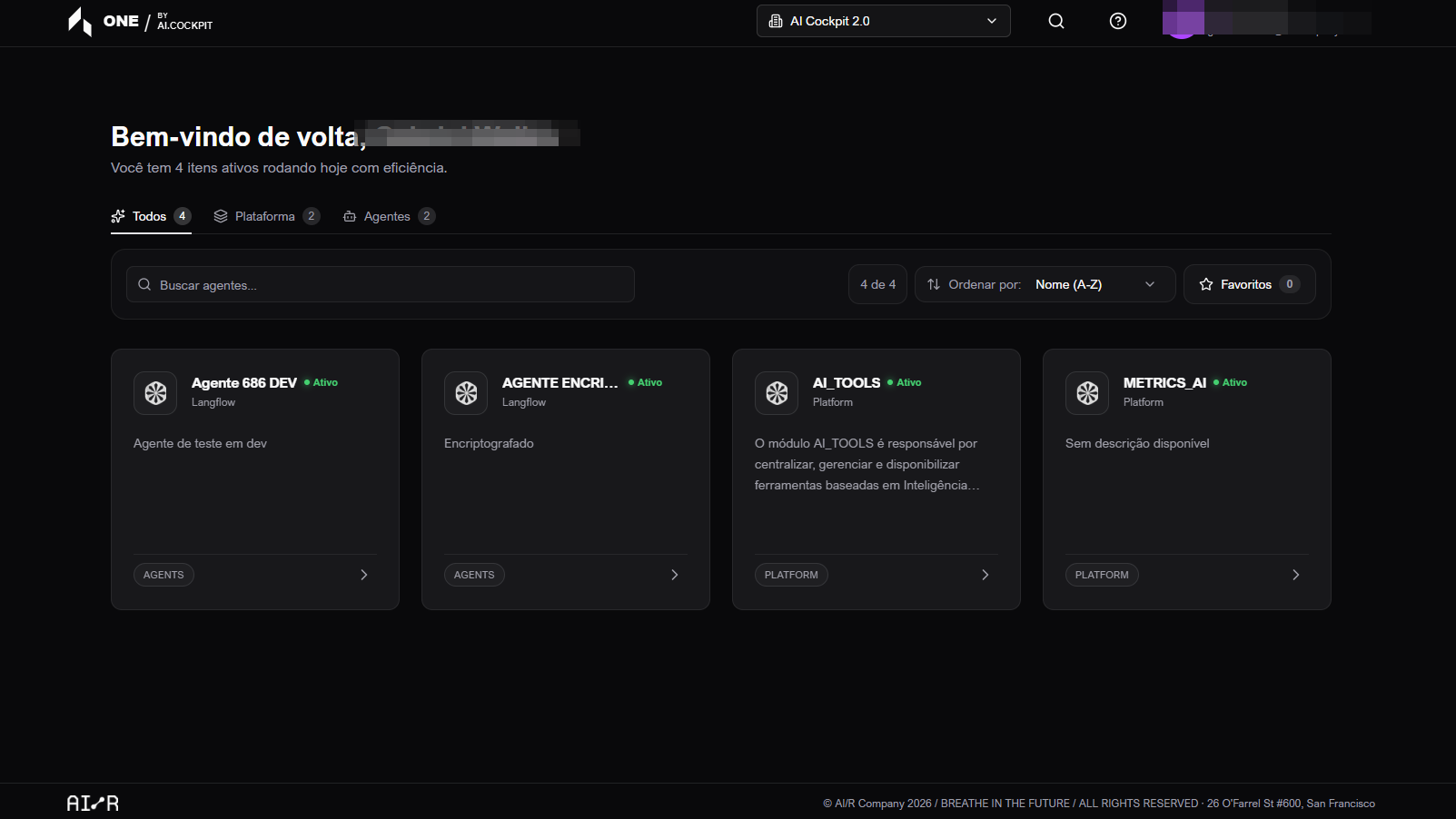
Home is the starting point in AI Cockpit One. It shows the agents and platform tools available to the active organization, so you can discover what exists and open the right experience.
When to use
- Use Home to find an agent by name, description, category, or favorite status.
- Use it to review an agent before starting a conversation.
- Use it to open platform tools available to your organization.
Before you start
- Confirm that the correct organization is selected in the header.
- Remember that inactive agents may be visible but unavailable.
- Some cards appear only when your user has permission to access them.
Step by step: find an agent
- Open Home.
- Use search to type part of the name or description.
- Use categories to switch between all items, platform tools, and agents.
- Use Favorites to show only marked items.
- Change the sort order when you need to list by name or date.
- Clear filters to return to the full list.
Step by step: favorite an item
- Find the agent or tool card.
- Click the favorite icon.
- Use the Favorites filter to view only saved items.
- Click the icon again to remove the favorite.
Step by step: open details
- Click an active card.
- Review the detail drawer.
- Read the category and description.
- Click Access, Open Flow, or Start Chat, depending on the item type.
- Close the drawer to return to the list.
Understand the screen
| Item | What it means |
|---|---|
| Categories | Separate all items, platform tools, and conversational agents. |
| Search | Filters the list by text. |
| Favorites | Shows only items marked by you. |
| Agent type | Refines the list by the configured agent category. |
| Sort by | Changes the result order. |
| Active card | Item available to open and use. |
| Inactive card | Item temporarily unavailable. |
| Detail drawer | Side panel with description, status, and available actions. |
Expected result
You should find the correct item, confirm that it belongs to the active organization, and open it from the detail drawer.
Tips and common issues
- If the list is empty, clear filters and confirm the active organization.
- If an item is inactive, contact the team responsible for that agent or tool.
- If a card is missing, your organization may not have access or your role may not include it.
Flow image