Profile
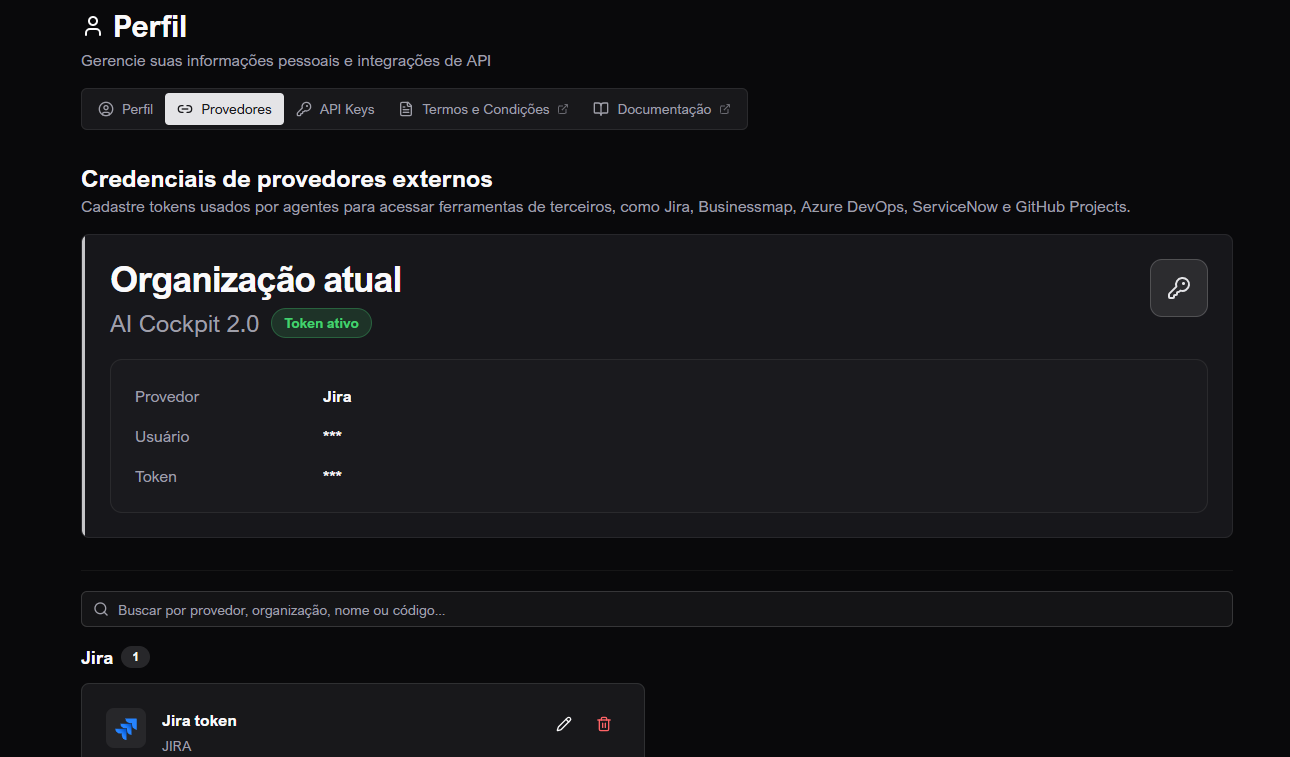
Profile concentrates your personal information, provider tokens, API Keys, terms, and documentation links in AI Cockpit One. It also supports agent workflows that depend on external provider credentials.
When to use
- Use Profile to update your displayed first and last name.
- Use it to register provider tokens used by agents to access external tools.
- Use it to create and manage API Keys for controlled integrations with other AI Cockpit tools.
- Use it to open terms and documentation links.
Before you start
- Confirm the active organization before creating an API Key.
- Keep provider tokens and API Keys private.
- Remember that the complete API Key is shown only once.
Tabs
| Tab | What it does |
|---|---|
| Profile | Shows and lets you update first and last name. Email and role are informational. |
| Providers | Manages tokens used by agents to access external tools on your behalf or on behalf of the organization. |
| API Keys | Manages organization API Keys for controlled integrations with other AI Cockpit tools. |
| Terms and Conditions | Opens the terms link. |
| Documentation | Opens the documentation link. |
Step by step: update personal data
- Open Profile.
- In the Profile tab, review your information.
- Edit first name and last name when needed.
- Click Save.
- Wait for the success confirmation.
note
Your email and role are controlled by your organization and are shown only for reference.
Step by step: add a provider token
- Open Profile.
- Go to Providers.
- Click Add Token.
- Choose the provider, such as Jira, Businessmap, Azure DevOps, ServiceNow, or GitHub Projects.
- Fill in name, code, user or email when requested, token, and description.
- Use the official guide shown in the modal if you need help generating the token in the external provider.
- Save.
Step by step: edit or delete a provider token
- Open Providers.
- Locate the token using search or the list.
- Use the edit action to update the saved data.
- Use the delete action to remove the token.
- Confirm only when you are sure, because deletion removes the credential.
Step by step: create an API Key
- Open Profile.
- Go to API Keys.
- Confirm that the correct organization is selected.
- Click New API Key.
- Enter a description.
- Choose a module if you want to restrict the key to one area.
- Define an expiration date.
- Create the key.
- Copy the complete API Key when it appears.
- Store it securely before closing the modal.
warning
The complete API Key appears only once. After you close the modal, AI Cockpit One shows only the masked value. If you lose the key, create a new one and delete the old key when necessary.
Understand the screen
| Item | What it means |
|---|---|
| Personal data | Name shown in the platform. |
| Provider token | Credential that lets agents access an external provider. |
| API Key | Credential used for controlled integrations with other AI Cockpit tools. |
| Expiration date | Date when an API Key stops working. |
| Masked value | Partial value shown after the complete key is hidden. |
Expected result
Your profile changes should be saved, tokens should be available for agents that need them, and API Keys should be copied and stored securely at creation time.
Tips and common issues
- If a provider token does not work, generate a new token in the external provider and update it in Profile.
- If you cannot see API Keys, confirm your organization and access level.
- If you lost the complete API Key, create a new one.
Flow image